Scope/Description
This article explains how to change the IPMI username and password on Supermicro and Gigabyte motherboards. IPMI provides powerful remote management capabilities, including full administrative access to your server over the network. Because of this high level of control, it’s important to secure the interface properly. Changing the default login credentials is a critical first step in preventing unauthorized access and reducing the risk of compromise.
Prerequisites
IPMI configured on the Storinator
Steps for Supermicro
- First, log in to the IPMI by typing in the IPMI IP address in the web-browser of a workstation. If you are unsure of the IPMI address, it can be found on-screen during boot, or through BIOS in the IPMI section.
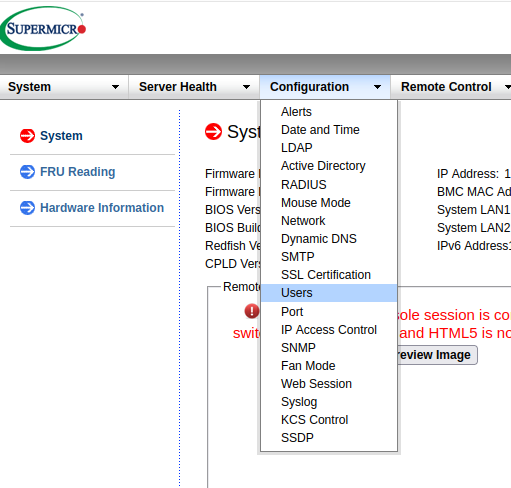
- For Supermicro motherboards, once logged in, move your cursor over the Configuration tab. Then click on Users.
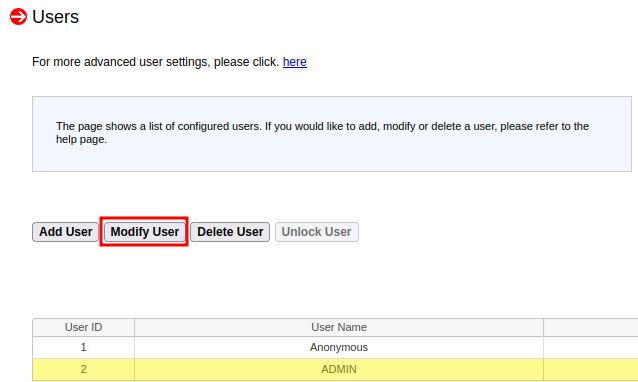
- Click on the ADMIN user to highlight this option, then click on Modify User.
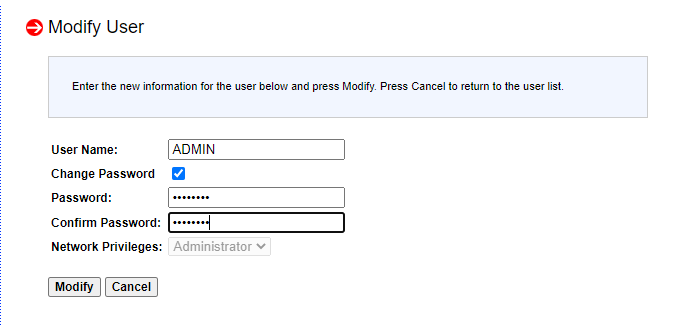
- From here, it may be best to change the ADMIN account to something different from the default, as well as changing the password. Check the Change Password tab, and then type in your new password. Finally, click Modify.
- Repeat these steps for new users as needed.
Steps For Gigabyte
- First, log in to the IPMI by typing in the IPMI IP address in the web-browser of a workstation. If you are unsure of the IPMI address, it can be found on-screen during boot, or through your UEFI in the IPMI section.
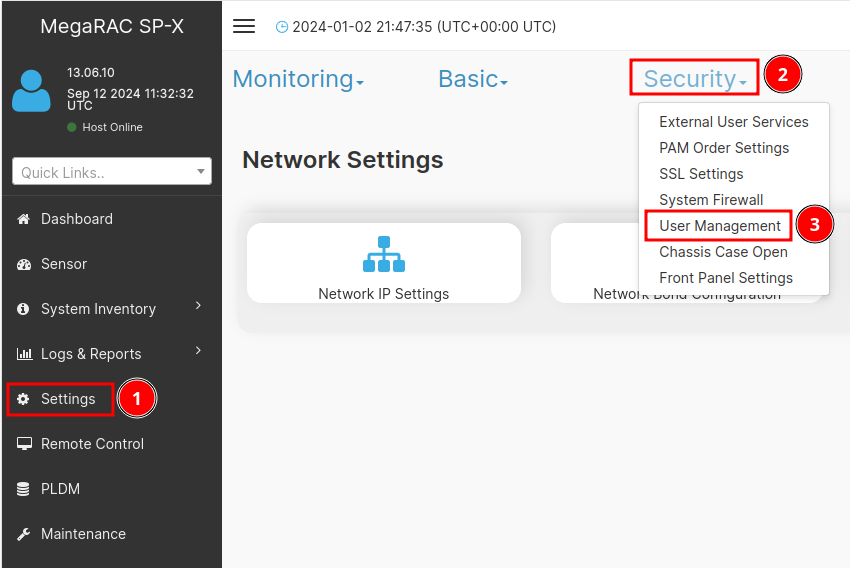
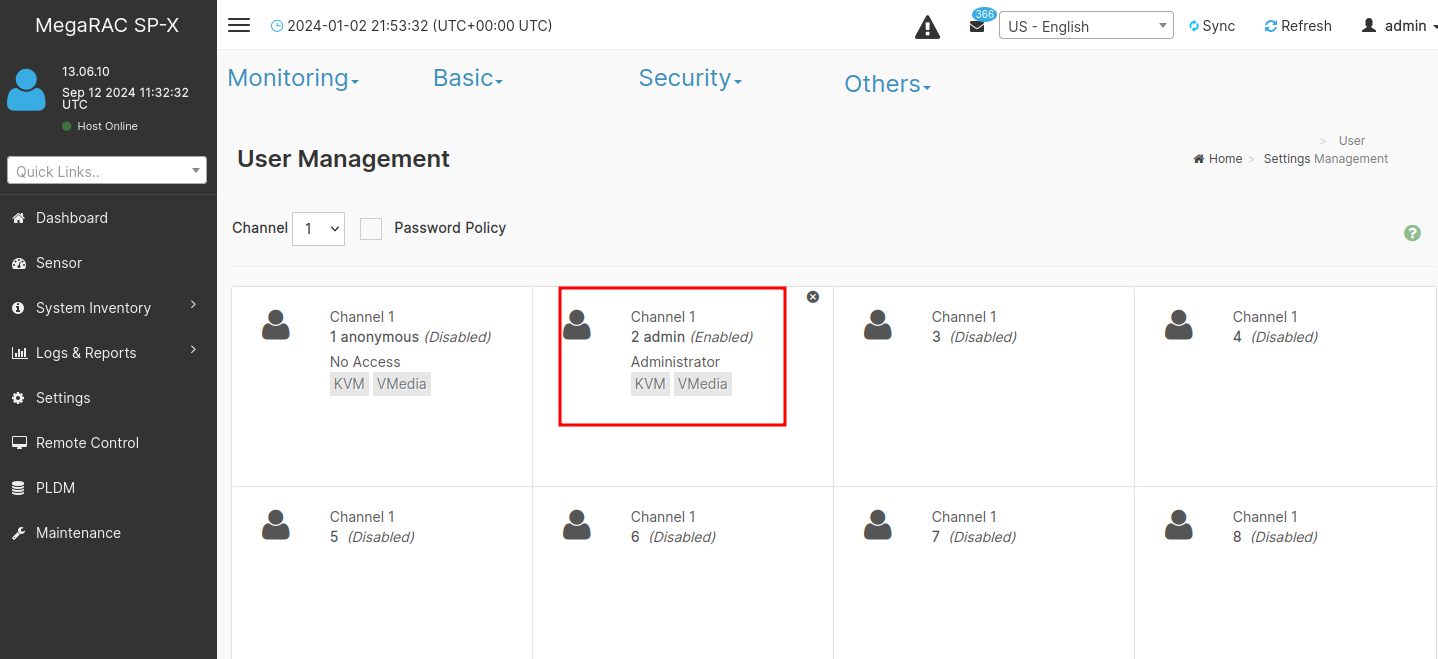
- For Gigabyte motherboards, click on settings in the left hand tab. Then, click the security drop down menu and select User Management.
- Next, select the box that you would like to edit or add. In this example, I will be changing the admin password.
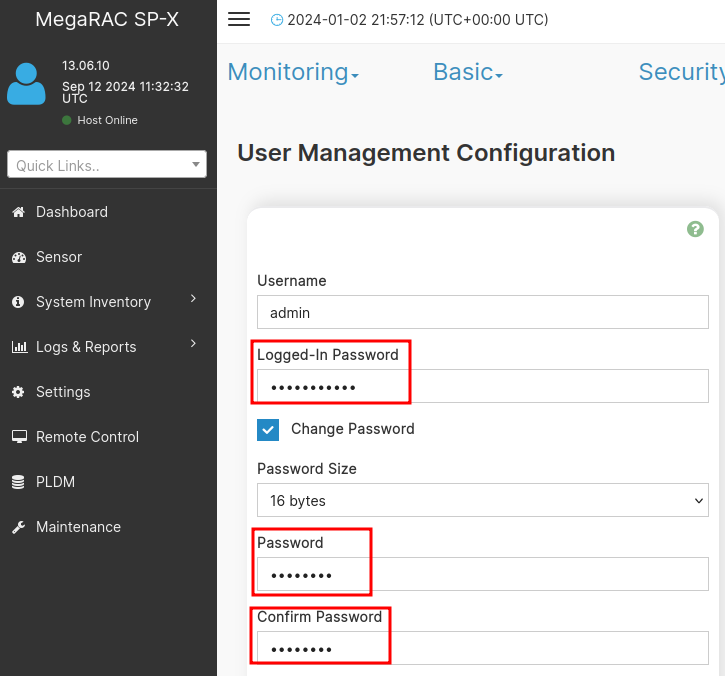
- Type in the current password. Then, check the change password box. Enter your new password. Scroll to the bottom of this window and select “Save.”
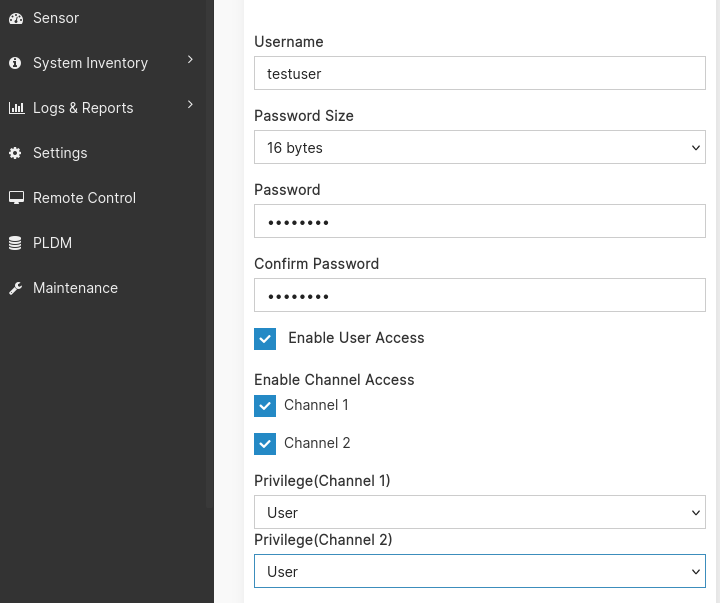
- If you would like to create a new user, you can select user #3 (or any other available spot) in the user management window. Then fill out the information for this new user. Scroll down and select “Save.”
Verification
Try to login with the new password to confirm it changed.
Troubleshooting
Views: 2340