KB450458 – Managing CephFS with Ceph Dashboard
Last updated September 4, 2021
Scope/Description
- This article will show how to view CephFS information, Ceph Pools configured, and directories created within CephFS.
Prerequisites
- Ceph Dashboard configured.
- CephFS Pool configured.
Steps
Viewing CephFS Information
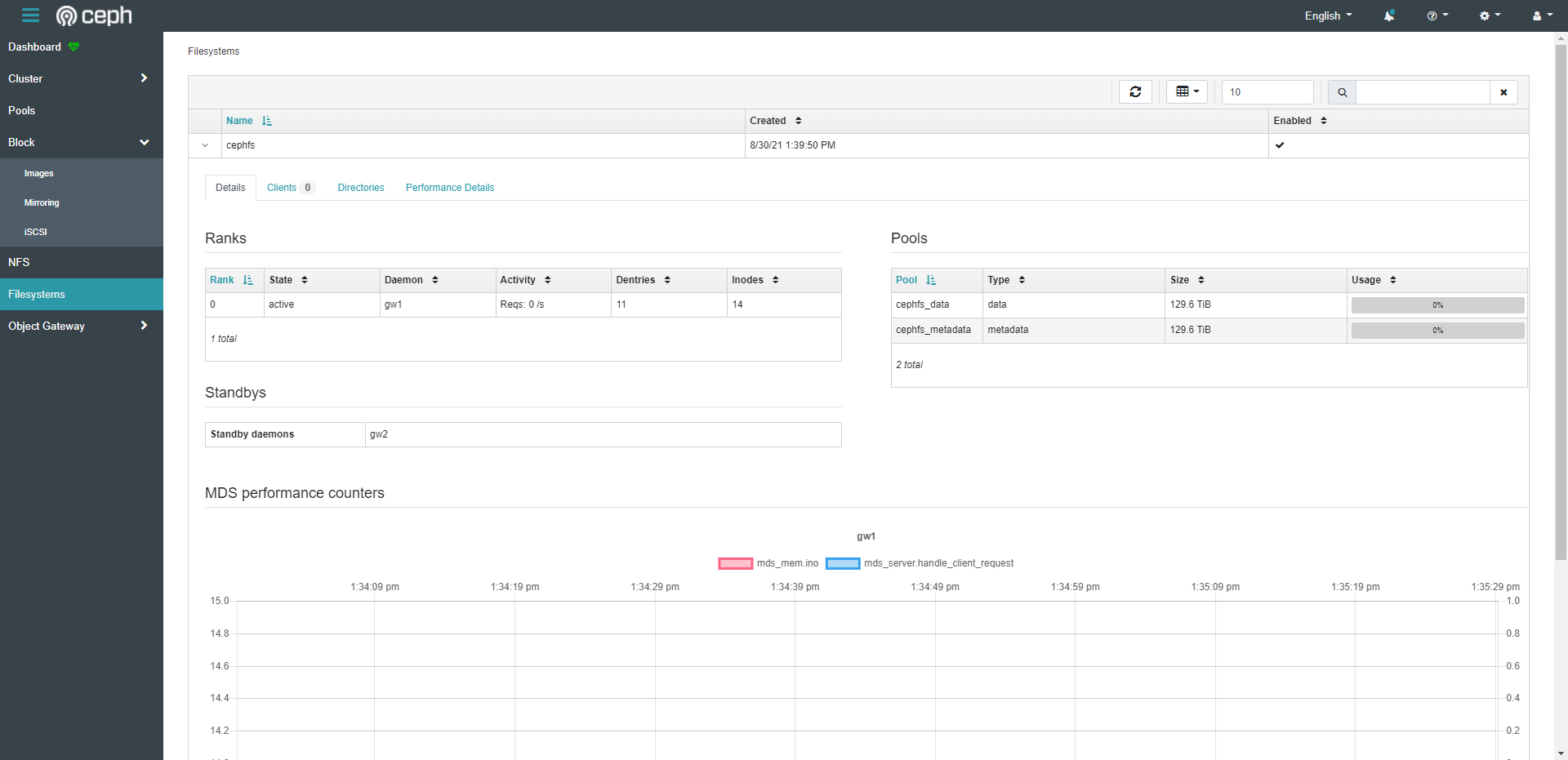
- First, we’ll have to navigate to the Filesystem tab within the Ceph Dashboard.
- From here we can take a look at pools that are configured to use CephFS, how much storage is available within them, and some other good to know information.
Viewing CephFS Clients
- If we are to go to the Clients tab, we can see all of our CephFS clients, whether they are mounting via kernel or userspace (ceph-fuse).
- If need be, we can also evict our CephFS clients from here.
Viewing CephFS Directories
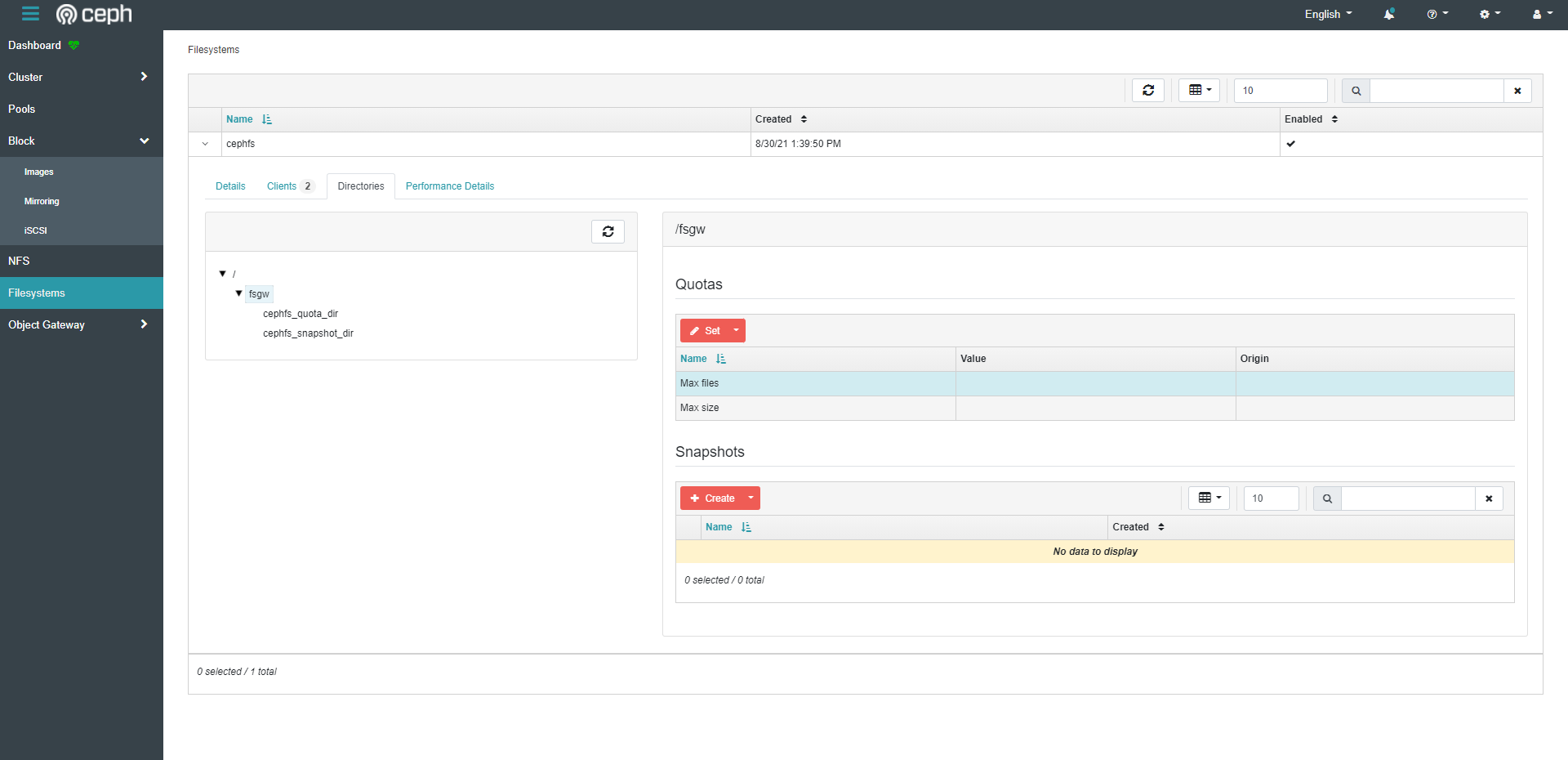
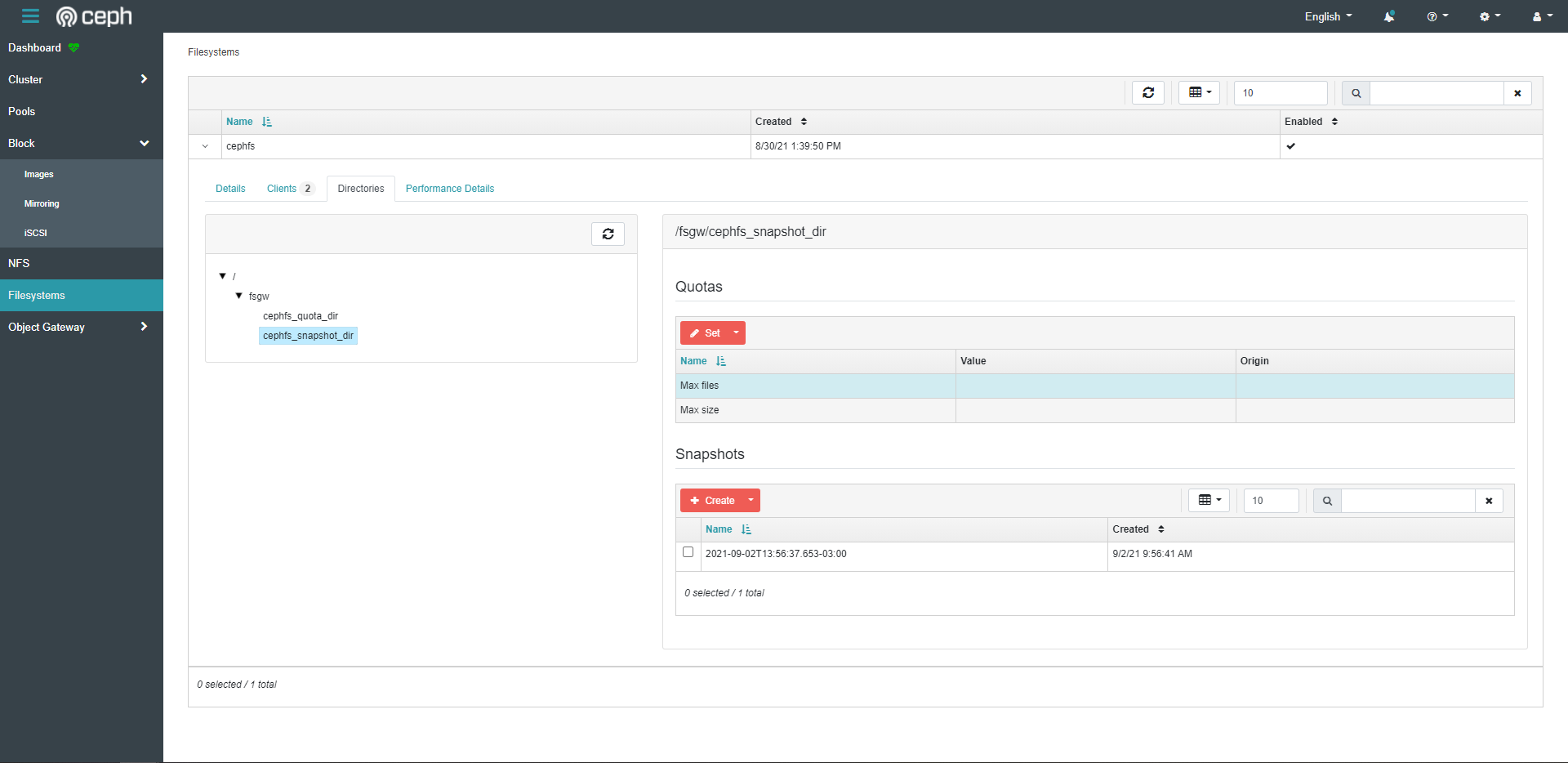
- If we are to go to the Directories tab, we can view our CephFS directories and see some information on each.
- From here, we can also configure CephFS quotas on each directory, and view any CephFS snapshots if there is any created for the directories.
Configuring CephFS Quotas
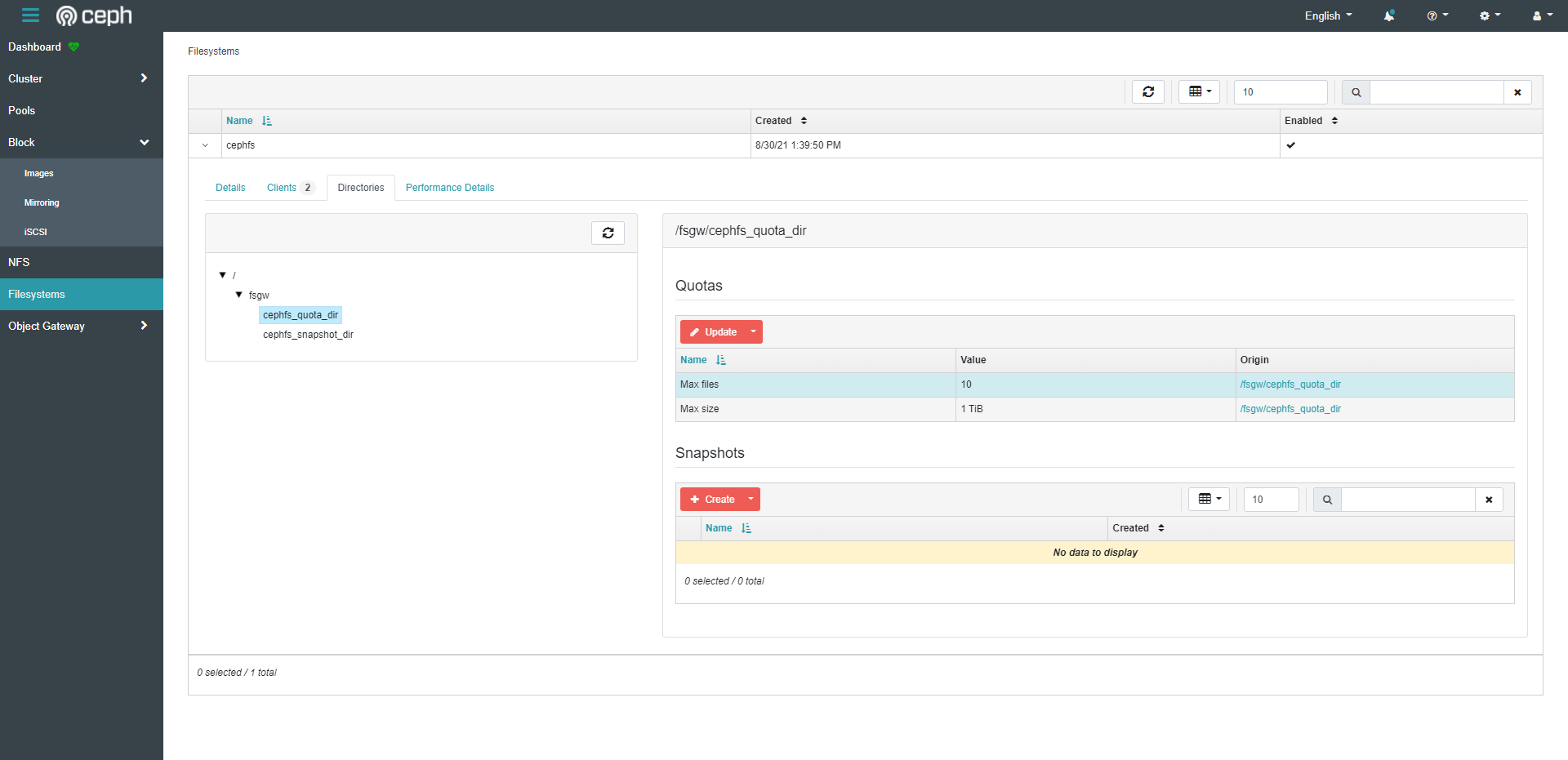
- Here we can see we’ve set a quota for a max of 10 files, as well as max size of 1 TiB.
Creating CephFS Snapshots
- Here we can see we’ve created 1 CephFS snapshot on this directory.
Verification
- We can see our CephFS clients, directories, set quotas, and create snapshots on our CephFS directories.